Welcome to our comprehensive guide on maximizing your AWS experience by increasing quota limits. If you've ever felt the frustration of hitting service limits in your AWS account, you're alone. But why do these limits exist in the first place? They serve a crucial purpose: preventing inadvertent resource over-provisioning and safeguarding services from potential abuse by limiting API request rates.
In this guide, our focus is on increasing the vCPU limit of 'G' type instances. You'll discover just how easy it is. Let's dive in!
1. Find necessary vCPU limit
You can go to this link to find 'G' type instances vCPU limits

You will see a screen like the following.
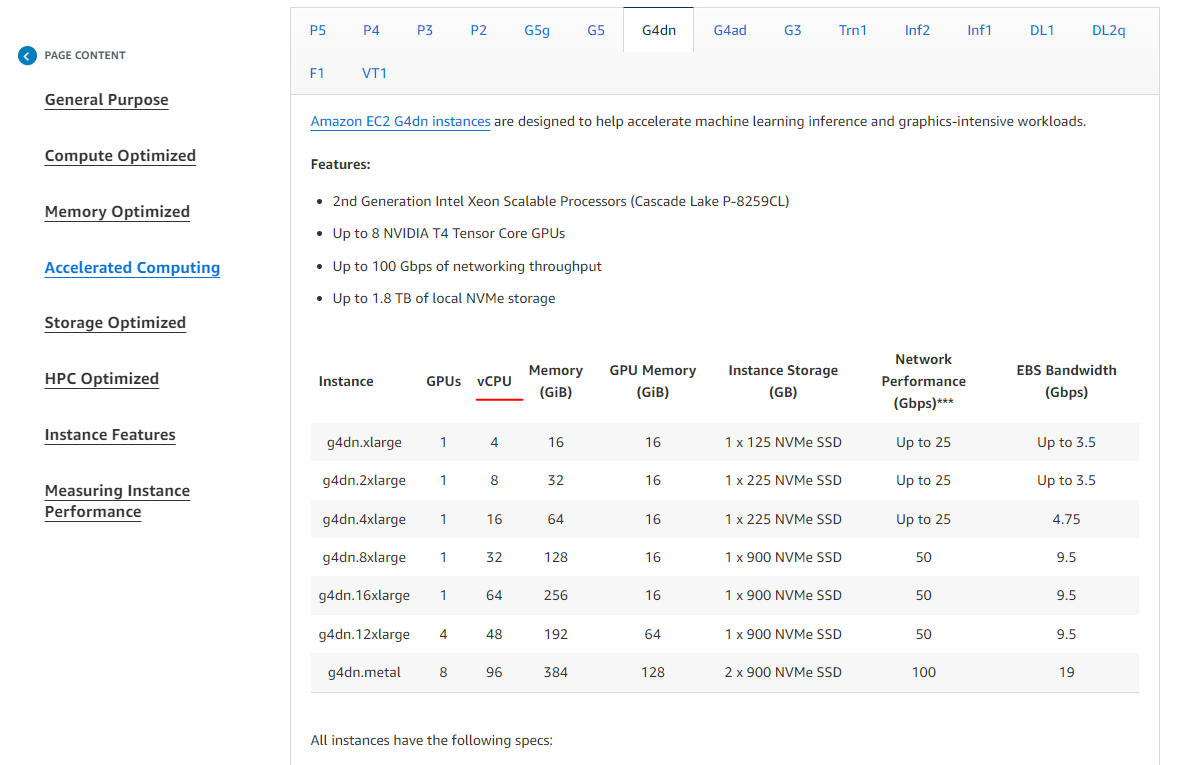
Now check the relevant number of vCPUs allocated for your selected instance type for the product. (In this example g4dn.xlarge instance is used which has 4vCPUs)
2. Find your AWS account's type 'G' instances vCPU limit
https://us-west-1.console.aws.amazon.com/servicequotas/home/services/ec2/quotas/L-DB2E81BA
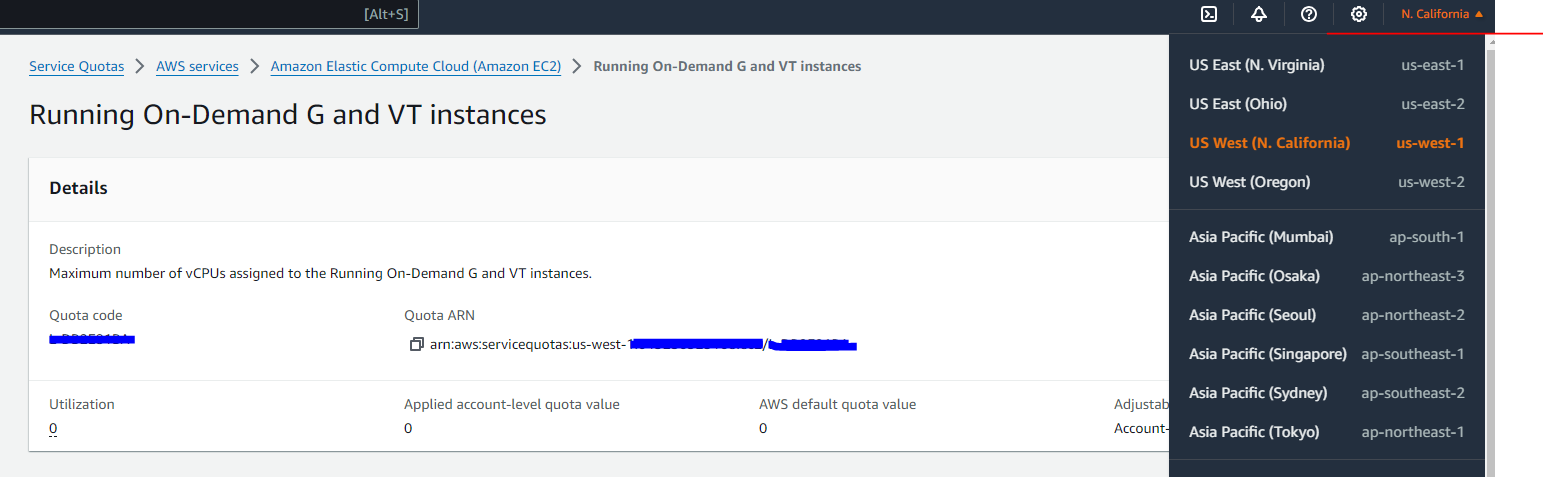
3. Select your preferred region which you are going to install the product (We will select us-west-2 as the example)
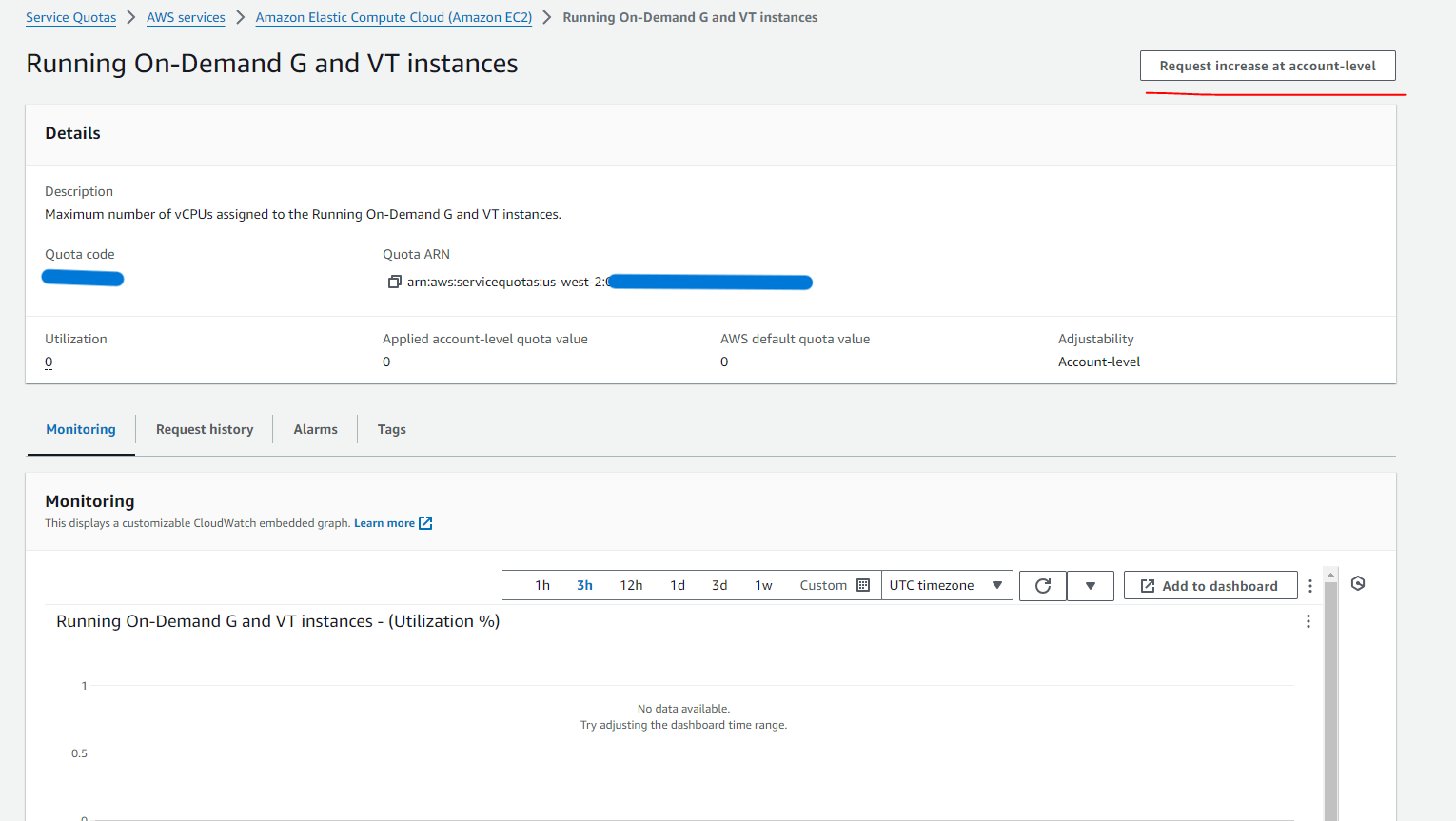
If you have not previously requested for a limit increase "Applied account-level quota value" is set to 0.
4. Click on Request increase at account-level
5. Increase the quota limit according to your findings on step 1
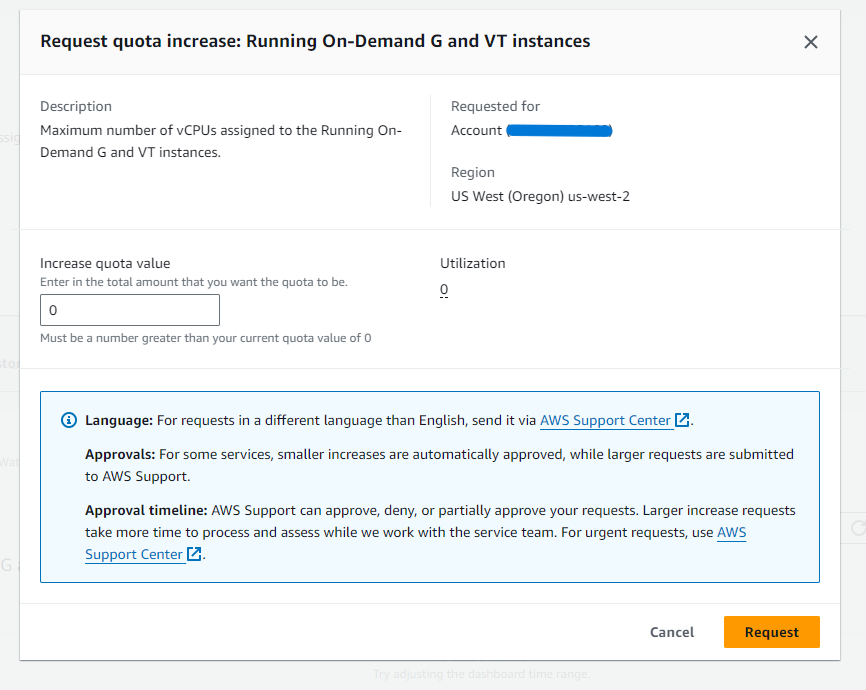
After clicking 'Request' button, you will see a notification like in the below

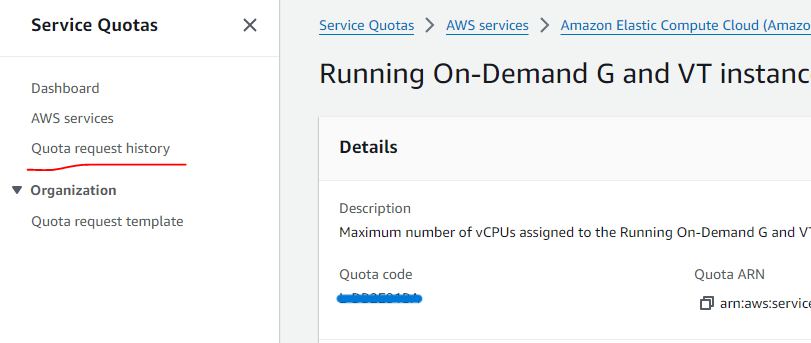
6. You can check the status of your request here. Click on the 'Quota request history'

7. After several minutes your request will be accepted. (In this example limit has been increased to 4)
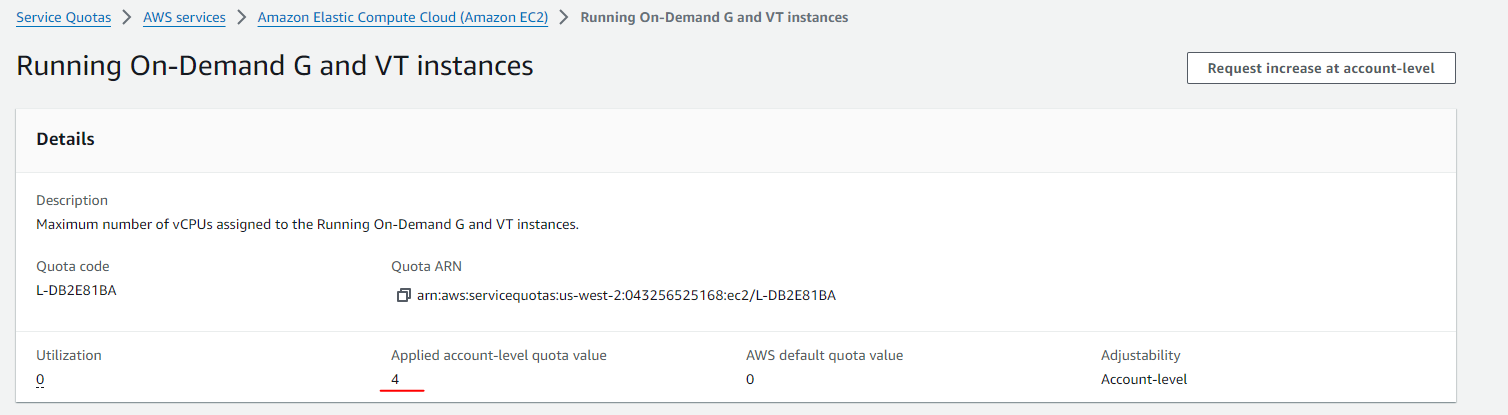
Please note that the processing time can vary up to several hours, depending on the limit you requested. If your request is not accepted, you can communicate with the AWS support team, stating the reason for the increment and proceed. Please refer to the link below for AWS support case history: https://support.console.aws.amazon.com/support/home#/case/history
After increasing the limit, you can proceed with installing the product.