Getting a Jitsi Meet conference onto your page takes about ten lines. Load a script, construct an object, point it at a container element. Done.
Controlling it afterwards is where the work is, and it is the part most examples skip. Your application needs to know when someone actually joined, mute people, react when the call ends, and tear the whole thing down cleanly when the user navigates away. All of that goes through a narrow bridge between your page and the iframe, and that bridge is what this article is about.
Which API you want
Jump to a section
Loading external_api.js
Every Jitsi Meet deployment serves the library at the root of its domain. You load it from the server you intend to talk to, not from a CDN and not from a copy you vendored, because it has to match the deployment's version.
<script src="https://your-jitsi-domain/external_api.js"></script>For a prototype you can point everything at meet.jit.si and it works immediately. For anything you ship, run your own instance. The public one rate limits embedded use, changes under you without notice, and gives you no path to token authentication. Our AWS setup guide covers standing one up.
Creating the conference
One constructor call puts the conference on the page.
<div id="jitsi-container" style="height: 700px;"></div>

<script>
  const domain = 'your-jitsi-domain';
  const options = {
    roomName: 'project-alpha-standup',
    width: '100%',
    height: '100%',
    parentNode: document.querySelector('#jitsi-container'),
    userInfo: {
      displayName: 'Ada Lovelace',
      email: 'ada@example.com'
    }
  };

  const api = new JitsiMeetExternalAPI(domain, options);
</script>
The full set of constructor options is small enough to be worth knowing outright:
| Option | What it does |
|---|---|
roomName | The room to join. This becomes part of the conference URL, so treat it as guessable unless you add authentication. |
parentNode | The DOM element the iframe is appended to. Give it a height or you get a zero pixel conference. |
width / height | Optional. A number for pixels, or a string ending in px, em, pt or %. |
configOverwrite | Overrides anything in the deployment's config.js. This is where most behaviour changes happen. |
interfaceConfigOverwrite | Overrides interface_config.js. Less useful than it used to be, see below. |
jwt | The token, if your deployment requires authentication. |
userInfo | Display name and email for the joining participant, so they are not prompted for it. |
lang | Interface language for this session. |
devices | Preselects audio input, audio output and video input by device label. |
invitees | Participants to invite as the call starts. |
onload | Handler for the iframe's own load event. Not the same as the user having joined. |
Changing how it looks and behaves
Almost everything you want to change lives in configOverwrite. Muting people on arrival, skipping the prejoin screen, and choosing which toolbar buttons survive:
const options = {
  roomName: 'project-alpha-standup',
  parentNode: document.querySelector('#jitsi-container'),
  configOverwrite: {
    startWithAudioMuted: true,
    startWithVideoMuted: false,
    prejoinConfig: { enabled: false },
    disableDeepLinking: true,
    toolbarButtons: [
      'microphone', 'camera', 'desktop', 'chat',
      'raisehand', 'tileview', 'hangup'
    ]
  },
  interfaceConfigOverwrite: {
    SHOW_JITSI_WATERMARK: false
  }
};
The toolbar gotcha
Older tutorials tell you to set TOOLBAR_BUTTONS inside interfaceConfigOverwrite. That setting moved into config.js as toolbarButtons. If you copied an example from a few years back and your toolbar refuses to change, this is almost always why.
Deeper visual changes, logos, colours, fonts, are not an IFrame API job. They are a deployment level change, which we covered in customising the Jitsi Meet frontend.
Listening for events
The handbook lists 68 events. You will use about six of them.
api.addListener('videoConferenceJoined', (event) => {
  // The local user is now actually in the room.
  console.log('joined as', event.id, event.displayName);
});

api.addListener('participantJoined', (event) => {
  console.log('someone else arrived:', event.id);
});

api.addListener('audioMuteStatusChanged', (event) => {
  updateMyMuteIndicator(event.muted);
});

api.addListener('readyToClose', () => {
  // The user hung up. Take the conference off the page.
  api.dispose();
  showPostCallScreen();
});
The distinction that trips people up: videoConferenceJoined fires for the local participant, participantJoined fires for everyone else. If your code runs at the wrong moment, or runs once per remote user when you meant it to run once, that is the pair to look at.
The other one worth wiring early is readyToClose. It fires when the user hangs up, and it is your only reliable signal that the call is over and the page should move on.
The current lists live in the handbook's events reference, and you can ask a running instance directly with api.getSupportedEvents(), which is more trustworthy than any article including this one.
Sending commands
Traffic in the other direction goes through executeCommand. There are 67 of them. The ones that earn their place in a typical integration:
api.executeCommand('displayName', 'Ada Lovelace');
api.executeCommand('subject', 'Sprint 14 planning');
api.executeCommand('toggleAudio');
api.executeCommand('toggleShareScreen');
api.executeCommand('toggleTileView');

// Moderator actions
api.executeCommand('muteEveryone');
api.executeCommand('kickParticipant', participantId);

api.executeCommand('hangup');
There are also read functions that return promises, which is how you get state back out rather than tracking it yourself. getParticipantsInfo(), getNumberOfParticipants(), isAudioMuted() and getDeploymentInfo() are the ones that come up. Full lists in the handbook's commands and functions references.
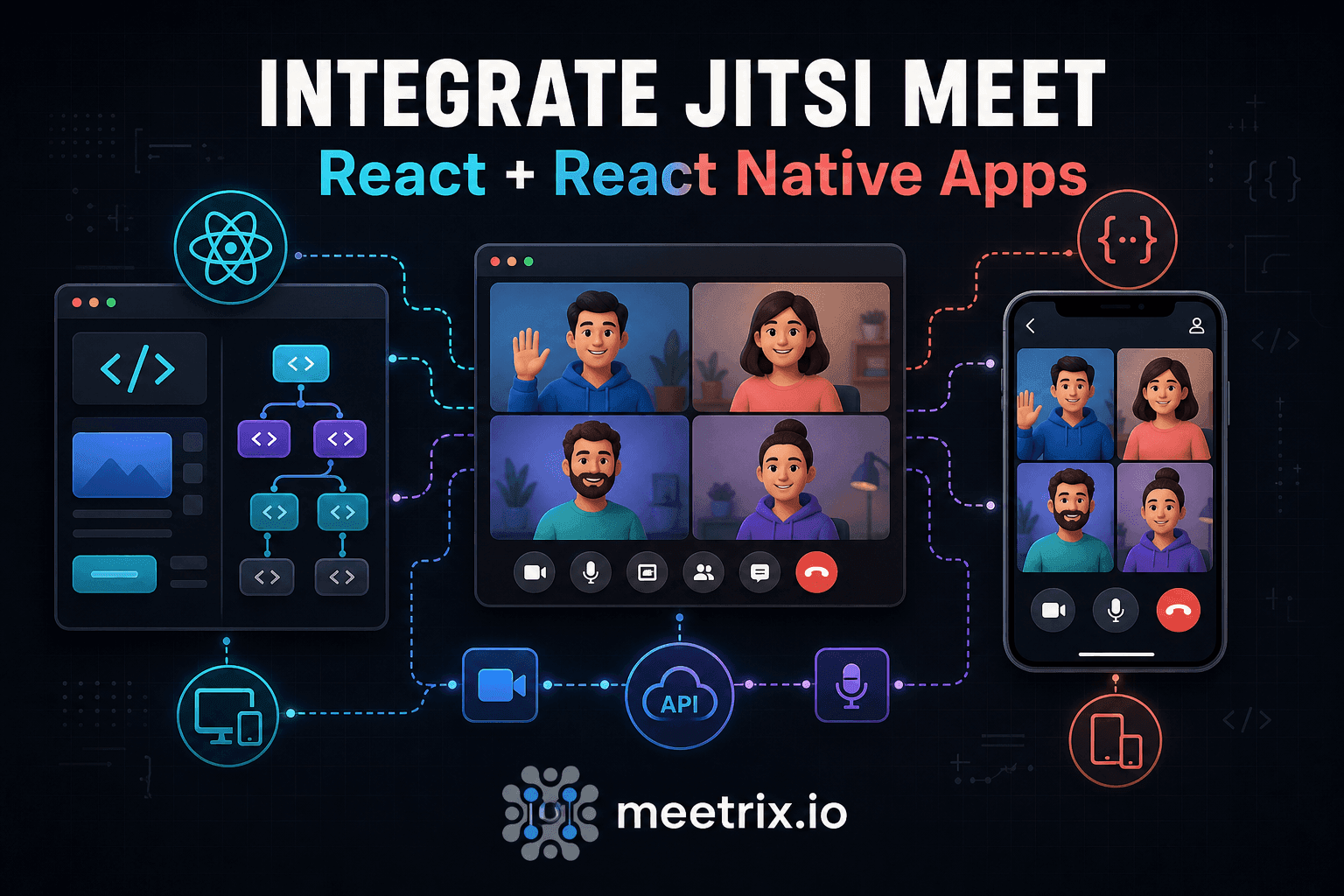
Building this inside a component framework rather than a plain page? The lifecycle gets fiddlier, and integrating Jitsi Meet with React covers that. For WordPress there is a simpler route.
Locking it down with JWT
Here is the thing nobody mentions until it is a problem. Room names in embedded integrations are usually generated from something in your own database, an order ID, a booking reference, a user ID. Predictable, in other words. And a Jitsi room with no authentication is open to anyone who can work out the name.
The fix is a token, passed at construction:
const options = {
  roomName: 'booking-8842',
  parentNode: document.querySelector('#jitsi-container'),
  jwt: tokenFromYourBackend
};

const api = new JitsiMeetExternalAPI(domain, options);
The token has to be signed by your backend, never in the browser, and the deployment has to be configured to require it. That setup is a job of its own, covered in integrating JWT authentication with Jitsi Meet, with the wider options compared in Jitsi authentication methods.
The cleanup step people forget
One line, and leaving it out causes bugs that look like something else entirely.
api.dispose();The embedded conference holds its media connections open until you remove it explicitly. In a single page application that swaps views without disposing, the user leaves the meeting screen and the call carries on, invisibly, still holding their camera. They will tell you their webcam light stays on. You will spend an afternoon looking in the wrong place.
Dispose on readyToClose, dispose when your component unmounts, and dispose on beforeunload if the user might navigate away mid-call. Jitsi's own guidance is to remove the conference before the page unloads.
That is the whole surface. Load the script, construct the object, listen for the handful of events that matter, send commands when your interface needs to, and clean up after yourself. Everything else in those reference lists is there for the day you need it, and most integrations never do.
Frequently Asked Questions
What is the Jitsi Meet IFrame API?
It is a small JavaScript library, external_api.js, served by every Jitsi Meet deployment. You load it, construct a JitsiMeetExternalAPI object, and it drops a full conference into an iframe inside an element you choose. From there your page can send commands into the call and listen for events coming out of it, without ever touching the Jitsi source.
Is the IFrame API the same as lib-jitsi-meet?
No, and picking the wrong one costs you weeks. The IFrame API embeds the finished Jitsi Meet interface and talks to it through a narrow bridge. lib-jitsi-meet is the low level library you use to build your own interface from scratch, with your own layout, your own controls and your own signalling handling. If the standard Jitsi UI is acceptable to you, use the IFrame API.
How do I know when a user has joined the conference?
Listen for videoConferenceJoined. That fires for the local participant once they are actually in the room, which is later than the iframe finishing loading. participantJoined is the one that fires for other people arriving. Confusing those two is a common source of code that runs at the wrong moment.
Why does my page break when the user leaves the meeting?
Usually because nothing called api.dispose(). The iframe keeps its media connections open until you remove the conference explicitly, so a single page app that swaps views without disposing leaves an invisible call running. Listen for readyToClose and dispose there, and dispose again on unload if the user might navigate away mid-call.
Can I hide toolbar buttons in the embedded conference?
Yes, through configOverwrite.toolbarButtons, which takes an array of the buttons you want to keep. Older guides tell you to use interfaceConfigOverwrite.TOOLBAR_BUTTONS instead. That moved into config.js, so if you copy a 2021 example and nothing happens to your toolbar, that is why.
Do I need my own Jitsi server to use the IFrame API?
Not to prototype. You can point the constructor at meet.jit.si and it works. For anything you ship, run your own deployment. The public instance rate limits embedded use, gives you no control over availability or configuration, and offers no route to JWT authentication for your own users.
How do I restrict who can join an embedded meeting?
Pass a JWT in the constructor's jwt option and configure your Jitsi deployment to require token authentication. Without it, anyone who can guess the room name is in the call, and room names in embedded integrations are often predictable because they are generated from an ID in your own database.
A Jitsi Meet Server to Embed Against
The IFrame API needs a deployment behind it. This one arrives configured, with TLS and the videobridge networking already handled, so you can get on with the integration instead of the infrastructure.
Get Jitsi Meet on AWS Marketplace